
Honee in Claude and ChatGPT — step by step
As of 1 Oct 2026. For partners and advisors who want to use their client's cruise advisor inside Claude or ChatGPT. This version is for cruise · honeefy. The address, sign-in and steps below are exactly the ones for this client.
What you get
Your Honee advisor is also an MCP server. MCP is an open standard that lets chat apps such as Claude and ChatGPT use outside tools. Once connected, the chat can:
| Tool | In plain words |
|---|---|
| Find bookable cruises | Queries your provider's live inventory |
| Show recommended cruises | Shows the offers Claude recommends as cards with image, price, cabins, route and a button to the offer |
| Advisor's opinion on one offer | Honee's assessment of exactly one offer from the list — never of an invented one |
| Cruise line profile | Who a cruise line is made for, what sets it apart |
| Ship profile | Cruise line, year built, size, passengers and crew of a ship, plus the provider's description (restaurants, pools and the like only as far as that description mentions them) — no cabins or deck plans |
| Port facts | Country, port code, coordinates and how many routes call at a port in your provider's catalogue |
| Who books, who protects the payment | Who operates the cruise and how your payment is protected |
The chat books nothing and pays nothing. Every button leads to the offer page of your provider; booking happens there — with your partner reference in the link.
Your address
https://app.honeebot.io/mcp/cruise
There is no login and no password: anyone who knows the address can use the advisor (see "Limits").
Part 1 · Claude (desktop app or claude.ai)
The screenshots show Claude's German interface; the buttons are in the same places in English.
Step 1 — Add a connector. Settings → Connectors → Add → Add custom connector.
 Screenshot · Claude, step 1
Step 2 — Name and address. Choose a name (e.g. cruise · honeefy), enter the address from the section above, then Continue.
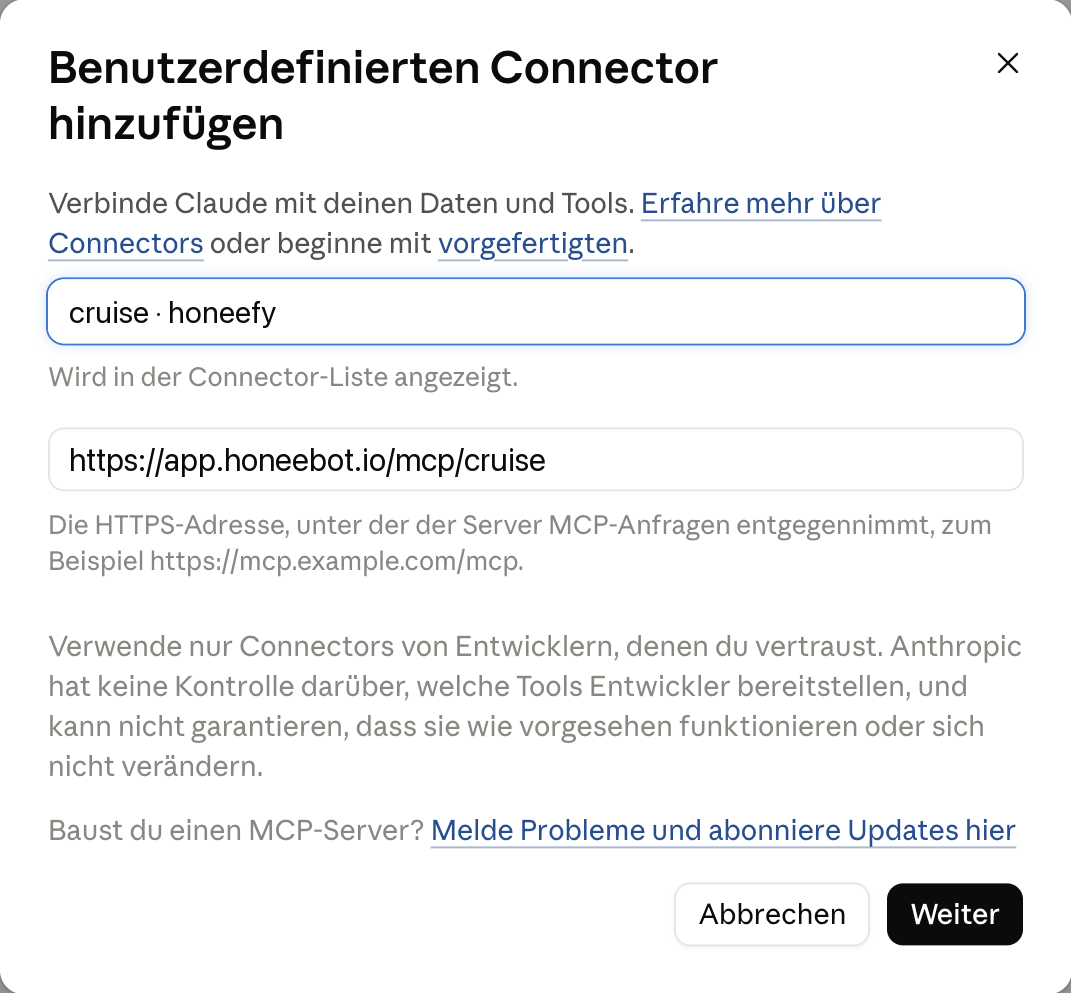 Screenshot · Claude, step 2
Step 3 — Authentication. Claude checks the server itself and marks what it detected ("Detected"). Choose "No authentication" here — the server is open. Leave Request headers empty, then Add.
Step 4 — Connect. Claude shows "You are not connected to cruise · honeefy yet." — click Connect.
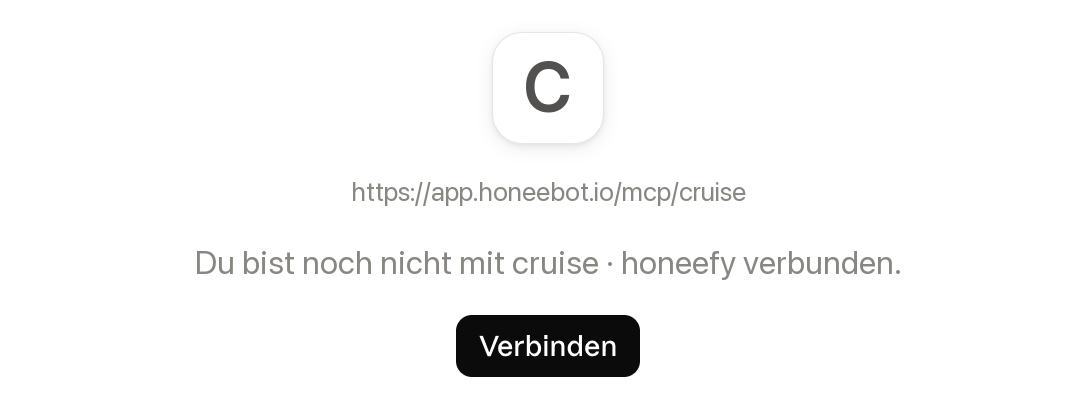 Screenshot · Claude, step 4
Step 5 — Allow the tools. Claude shows the tool permissions with seven tools: "Show recommended cruises" under Interactive tools, six under Read-only tools. Set both groups to "Always allow". Important: in our test both were first set to "Blocked" — then Claude may not use the server at all.
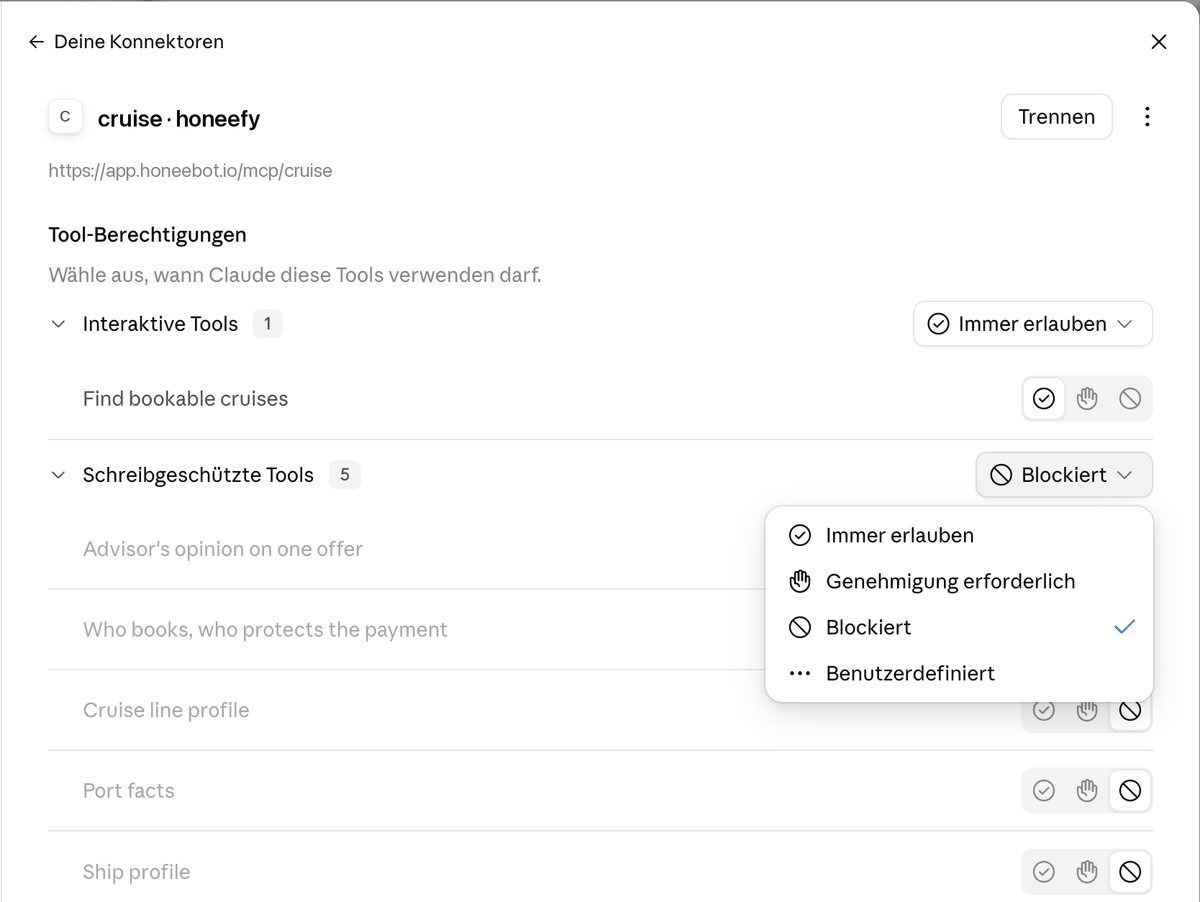 Screenshot · Claude, step 5
Step 6 — Switch it on in the chat. In the message box, + → Connectors, then switch cruise · honeefy on. Switch other cruise connectors off — otherwise Claude does not know which provider you mean. Under + → Connectors → Tool access, choose "Tools already loaded": with "Load tools when needed" Claude sometimes answers from memory or a web search instead of asking Honee.
If the switch is off, Claude sometimes finds the connector itself and asks ("Your connectors … Use"). Then click Use.
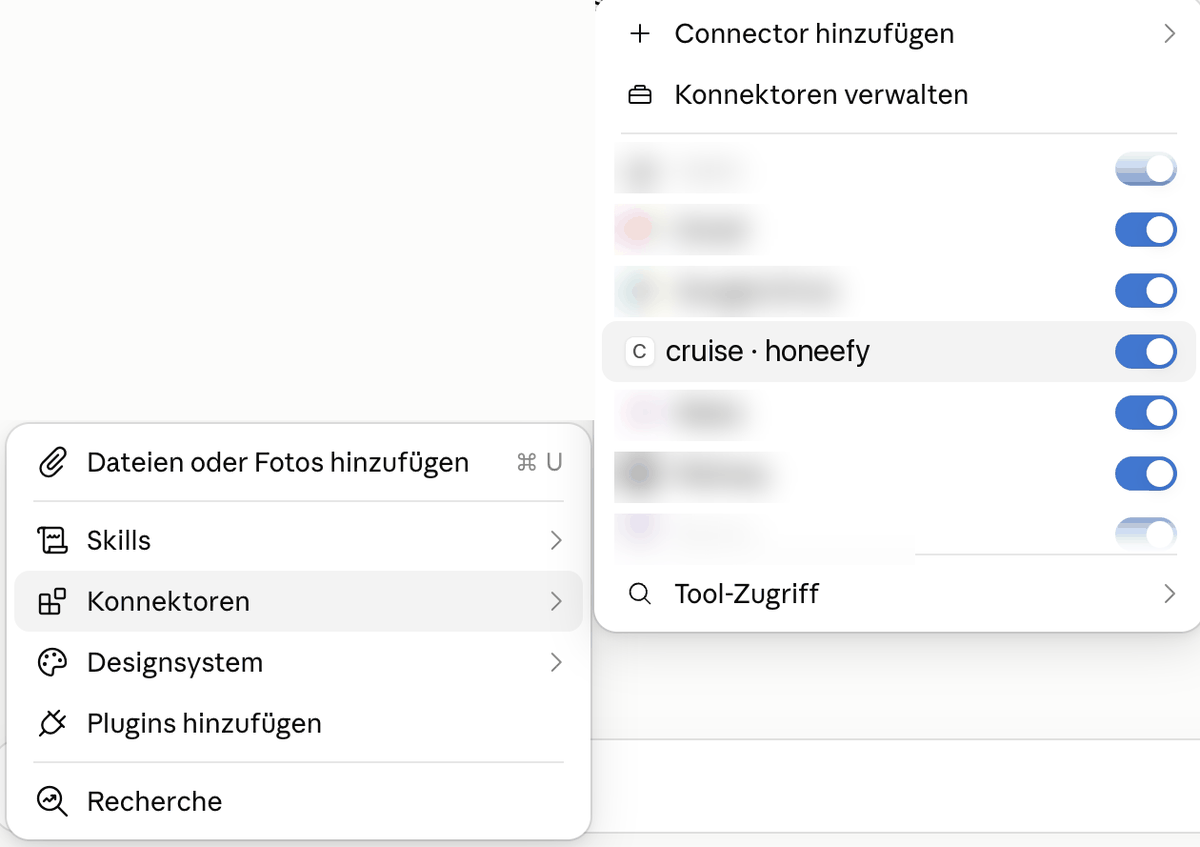 Screenshot · Claude, step 6
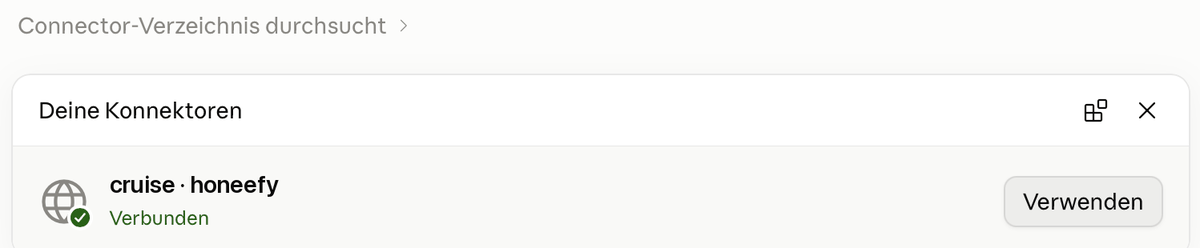 Screenshot · Claude, step 6b
Step 7 — Start a consultation (recommended). In the message box, + → Add from cruise · honeefy → Kreuzfahrt-Beratung mit Honee. This is a prompt our server provides. It sets the rules for the whole chat: first clarify travellers, children's ages, period and destination, then search; only name cruises Honee returned, each with its booking link; ask Honee for an opinion on a specific cruise.
What it does differently from the tools: Claude calls the tools on its own when it thinks they help. Without the prompt, Claude advises at its own discretion — and mixes in its memory or a web search. With the prompt it first asks for what is missing and stays with Honee's offers.
 Screenshot · Claude, step 7
Step 8 — Ask. A question the way you would ask an advisor:
We are a family with two children (4 and 9) looking for a Mediterranean cruise in October 2026 without flights. What do you have?
Claude calls "Find bookable cruises", then "Show recommended cruises" once with its pick, and shows the offers as cards, followed by its own summary with dates and travel notes.
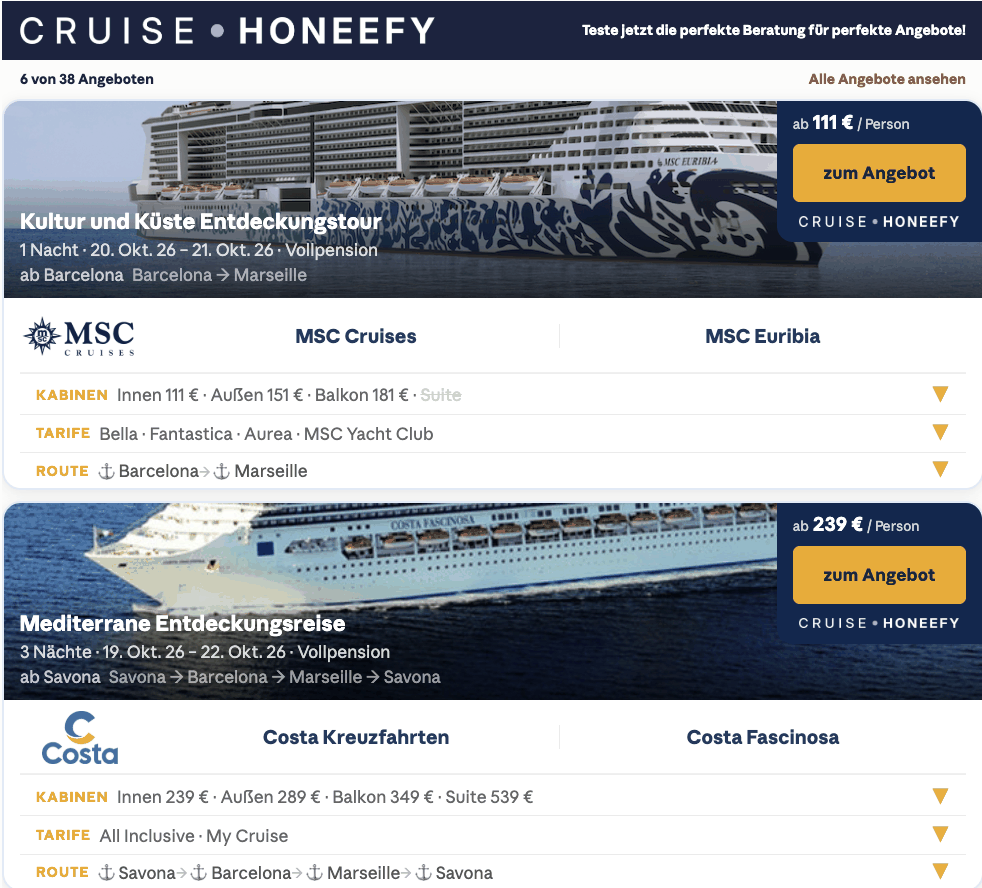 Screenshot · Claude, step 8
Step 9 — Follow up. For example:
Which of these offers suits us best, and why?
Claude fetches Honee's opinion on the candidates — only on offers from the list.
Step 10 — To the offer. Clicking view offer opens Claude's safety prompt "Open external link" — Open link. The link leads to your provider's offer page, with the travellers and children's ages from the conversation.
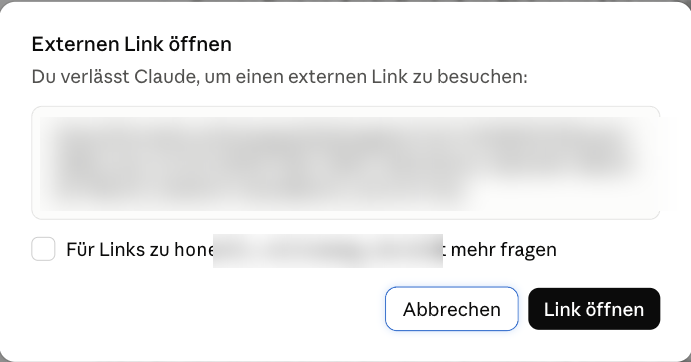 Screenshot · Claude, step 10
Good to know (Claude)
- No cards, only text? Claude reads the tool list only when the connector is created. If it was created before the cards were enabled, remove it once and add it again. Later improvements do not need this — we will tell you if they do.
- Claude's memory can mix in results from old chats ("Memory read"). The prompt from step 7 helps; for a fully clean test: a new project without memory, or delete the cruise memories in the settings.
- The connector works the same in the desktop app and on claude.ai.
Part 2 · ChatGPT
The screenshots show ChatGPT's German interface; the buttons are in the same places in English, and the English labels below are translated from the German ones — if one reads slightly differently, the screenshot shows the place.
Important in ChatGPT: add the server as a plugin — via Create MCP app (Settings → Plugins → Add). If you do not see Add, in Business and Enterprise workspaces the administrator enables creating plugins.
Step 1 — Open Plugins. Settings → Plugins. Top right, click Add → Create MCP app. (The other two entries, "Create plugin" and "Upload plugin archive", are not the right way.)
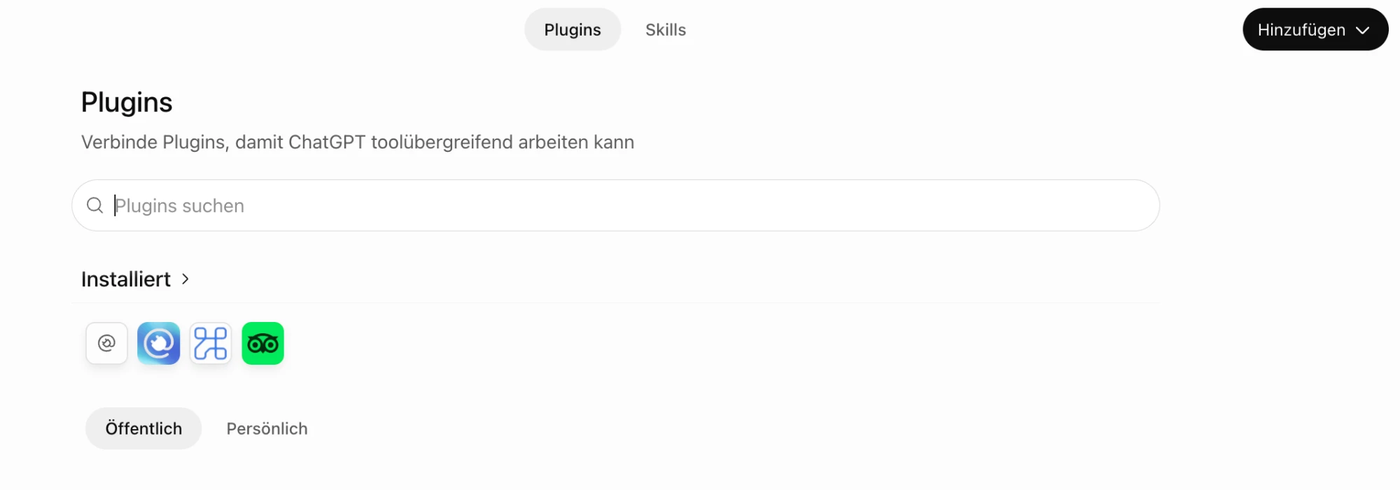 Screenshot · ChatGPT, step 1
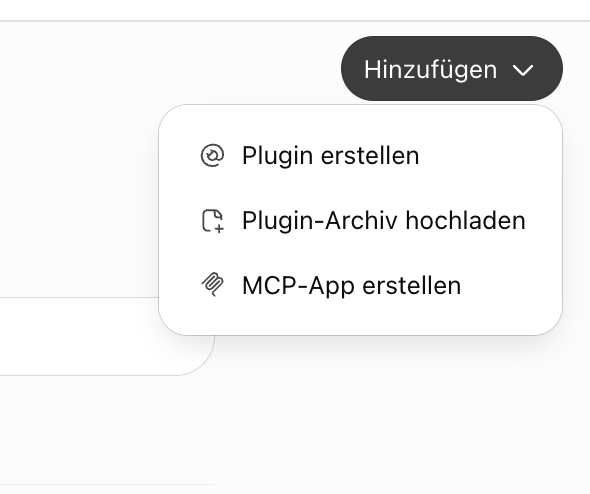 Screenshot · ChatGPT, step 1, Add
Step 2 — Fill in the form. "New plugin" has these fields:
- Icon (optional): a PNG, 10 KB at most.
- Name: cruise honeefy (Honee) — the same name as in the Claude directory, only without special characters such as "·". That is how you recognise the plugin in the picker and in front of your question.
- Description (optional): one sentence on what the advisor can do, for example "Cruise advice with live bookable offers, cabin prices and routes".
- Connection: Server URL (not "Tunnel"), and in it the address from the section above.
- Authentication: No authentication — the server is open.
Then tick "I understand and want to continue" (ChatGPT warns with every custom MCP server that you should only trust servers you know) and click Create.
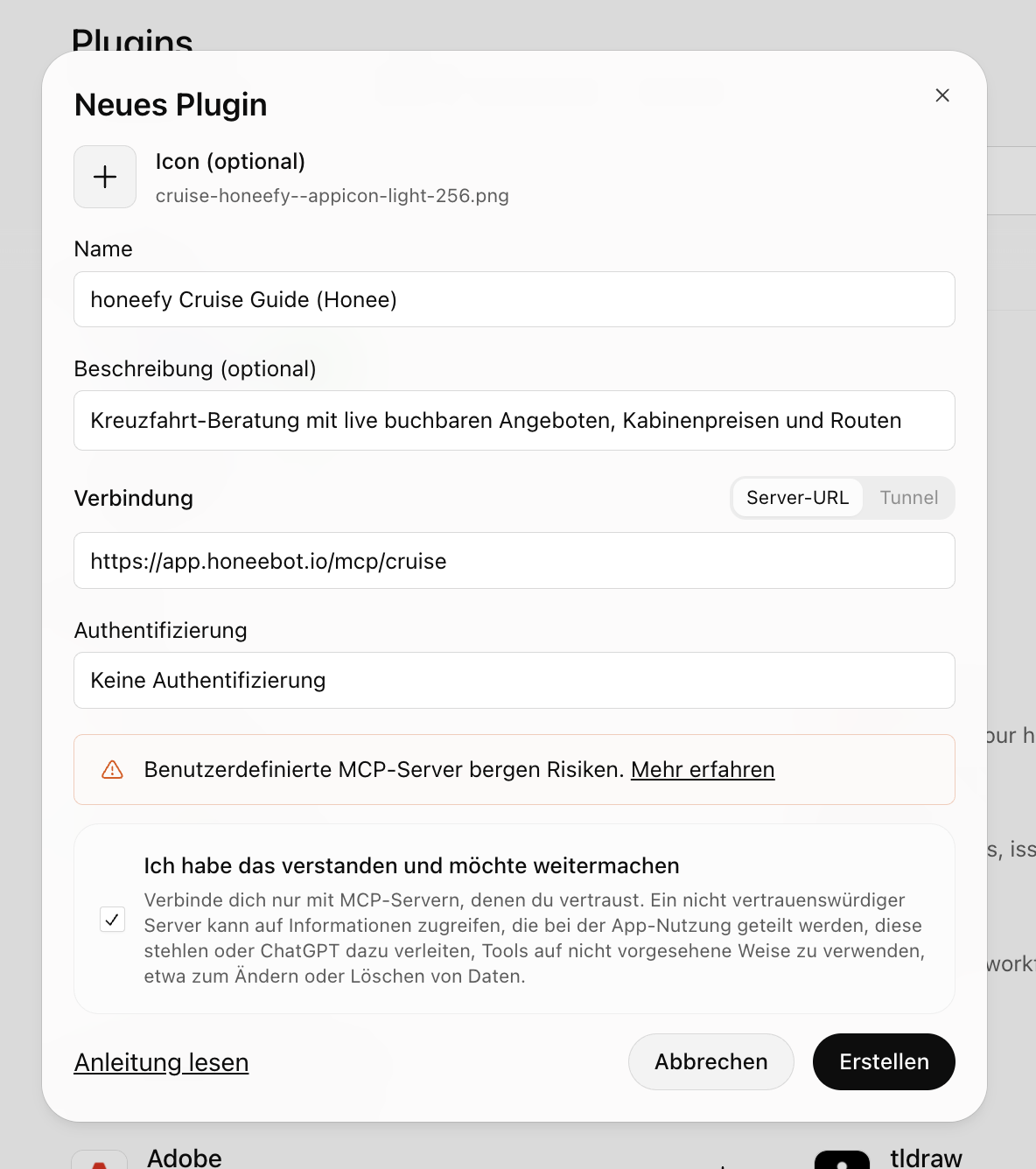 Screenshot · ChatGPT, step 2
Step 3 — Check. The new plugin now shows under Settings → Plugins among the installed ones.
Step 4 — Use it in a chat. In the message box, + → choose your plugin (cruise honeefy (Honee)), then ask the question. Do not select other cruise plugins at the same time — otherwise ChatGPT does not know which provider you mean.
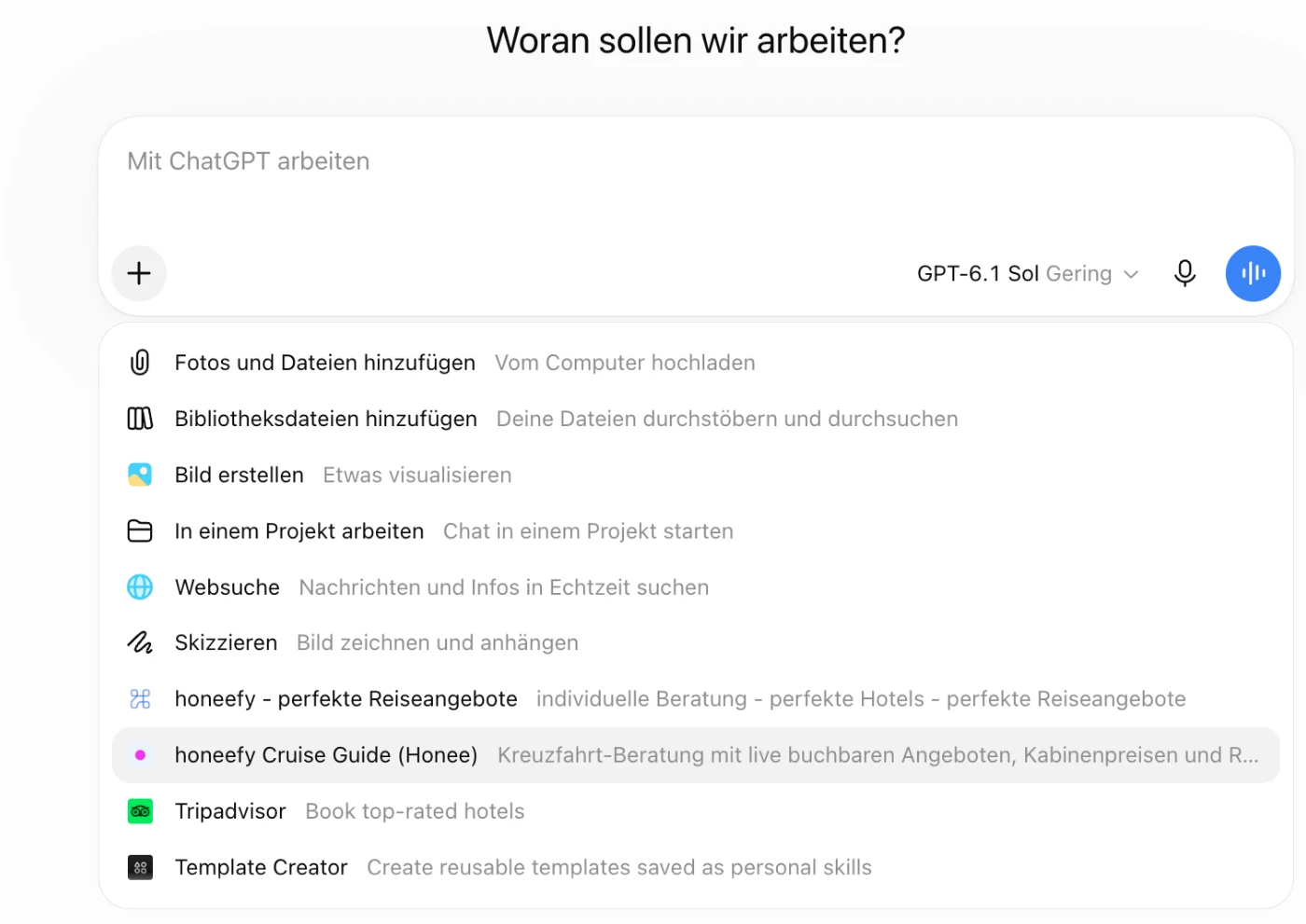 Screenshot · ChatGPT, step 4
Step 5 — Ask. The same question as above with Claude:
We are a family with two children (4 and 9) looking for a Mediterranean cruise in October 2026 without flights. What do you have?
ChatGPT shows the cards, followed by its summary. Above the cards it says how many offers there are in total, and on the right See all offers.
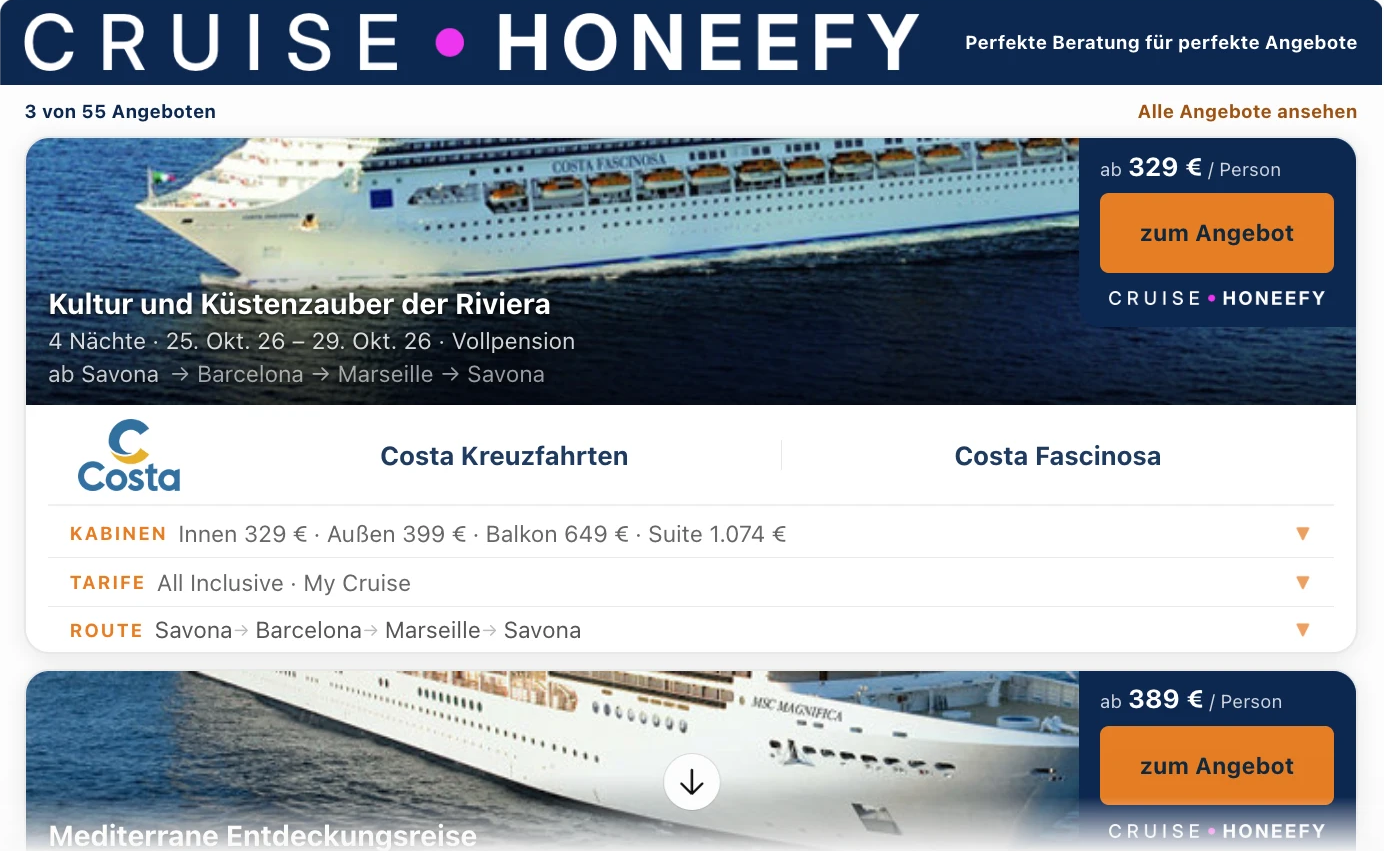 Screenshot · ChatGPT, step 5
Step 6 — To the offer. The click opens ChatGPT's safety prompt "External website"; Open link leads to the offer page.
Step 7 — Check once: the "enforce CSP" switch. CSP is the list of addresses a card may load images, fonts and program parts from. Under Settings → Security and sign-in → App security there is the switch Enforce CSP for custom apps (still off in the picture). Please switch it on and leave it on: ChatGPT then checks the cards under the same strict rules as for a finished product — and with us cards, images and logos run that way (measured on 30 Sept 2026).
If the switch is off, ChatGPT shows the label "CSP off" on the plugin. That is not an error, the cards run anyway; with the switch on the label disappears.
 Screenshot · ChatGPT, switch
 Screenshot · ChatGPT, label "CSP off"
Good to know (ChatGPT)
- "CSP off" label on the plugin? Not an error — see step 7. Switch it on and the label disappears.
- ChatGPT reads the tool list when the plugin is created — re-adding is only needed when we add tools; we will tell you.
- ChatGPT appends
utm_source=chatgpt.comto every link, so your offer page knows where the visit came from and says so. - ChatGPT's "deep research" plugins need other tools (search and fetch); this server is built for normal chats.
Limits and safety
- No login — unless you want one. By default anyone who knows the address can use the advisor; the brake is a daily cap of 3,000 calls per client. If access should be limited to your people, we switch on "Login" for your client: Claude and ChatGPT then open the honeebot sign-in window when connecting, and only advisors who belong to your client get through. The address stays the same. Optional on top: "One device" — each advisor is signed in on one browser and one chat client at a time; a new sign-in in Claude or ChatGPT ends the previous one there. Every call then appears with a name in the admin panel under "MCP usage".
- With login, Honee knows the advisor's skill level (Starter · Junior · Senior · Expert, set in the admin panel under Advisors). Starter and Junior get explanations, a guide and hints for the customer conversation with every answer; Senior and Expert see the results without additions. Without login there is no level -- everyone sees the same.
- Read-only. No tool books, pays or stores anything with the provider. Booking happens on the offer page.
- Live data. Prices and availability are your provider's data at the moment of the call; the card says the price is the one shown on the offer page.
- An order without hidden motives. Cards are ordered by fit to the question, then by price — not by commission. A visible fit score per offer is in the works.
- A handle (the shortlist of one search) expires after 24 hours.
If something does not work
| You see | Meaning | What to do |
|---|---|---|
| "switched off" | The advisor is not enabled for this client | We enable it in the admin panel |
| 405 when opening the address in a browser | Normal — MCP does not talk to browsers | Use the address in Claude or ChatGPT |
| "daily limit" | 3,000 calls reached | Try again tomorrow — or ask us to raise the limit |
| Answers in the wrong language | The chat did not pass a language | Ask in the language you want |
| No cards in Claude | The tool list from creation is stale | Remove and re-add the connector |
| "CSP off" label on the plugin in ChatGPT | The switch "Enforce CSP for custom apps" is off — not an error | Switch it on, see Part 2, step 7 |
| Claude uses the wrong provider | Several cruise connectors on, or memory | Enable only one; new project without memory |
Ask the assistant itself
Menus change; the assistant's explanation stays current. Three prompts — one per tool — to paste.
Claude (desktop app or claude.ai):
Explain step by step how I add a custom connector (remote MCP server) in Claude and switch it on in a chat. The address is https://app.honeebot.io/mcp/cruise and it needs no login. Name the exact menu items of your current interface (desktop app and claude.ai) and tell me whether this also works on the phone. Then draw a schematic overview as an artifact and label it as a schematic, not a screenshot. Do not invent tool names — the tools are find_cruises, show_offers, advise, cruise_line_profile, ship_profile, port_info and booking_facts.
ChatGPT:
Explain step by step how I create my own plugin as an MCP app (remote MCP server) in ChatGPT — Settings, Plugins, Add, Create MCP app — and use it in a chat. The address is https://app.honeebot.io/mcp/cruise, no authentication. Name the exact menu items of your current web interface and tell me which account types can do this. Do not invent tool names — the tools are find_cruises, show_offers, advise, cruise_line_profile, ship_profile, port_info and booking_facts. If you generate an image, label it as a schematic, not a screenshot.
Claude Design (schematic of the four Claude steps):
Create a schematic 4-panel mockup overview (wireframe style, not an exact reproduction of the real Claude interface) showing how to add and activate a "Custom Connector" (remote MCP server) in Claude (claude.ai). Layout: 2x2 grid, each panel labelled top-left with a circled number ①–④, thin arrows between them showing the order. Style: light, neutral UI (white/light grey, one accent colour such as orange for click targets), clean sans-serif type, subtle shadows, simple icons instead of photos. Top-left of panel ① a discreet wordmark "Claude" as a placeholder for the app header — no real logo, just text.

Panel ①: Browser window with the Claude interface and left sidebar. Navigation items "Customize" and, indented below, "Connectors" are visible; "Connectors" is highlighted as the click target.

Panel ②: The "Connectors" settings page. Top right a "+" button, highlighted as the click target. Below, a list of 2–3 placeholder connectors (e.g. "Google Drive", "Slack").

Panel ③: A modal dialog "Add custom connector" with fields "Name" (placeholder "cruise · honeefy") and "URL" (placeholder "https://app.honeebot.io/mcp/..."), a collapsed section "Advanced settings" with the note "leave empty", and a highlighted "Add" button bottom right.

Panel ④: A Claude chat window. Bottom left a "+" button, marked as the click target, opening a small panel "Connectors" with an entry "cruise · honeefy" and a toggle (state: on, green).

Under each panel a one-line caption describing the step. At the end a small footnote: "Schematic representation of the Claude interface, not an exact rendering of a specific version."
What the assistant cannot do: provide real screenshots. Claude does not generate photos; ChatGPT can draw interfaces, but those are illustrations — the images in this guide are real screenshots taken on 23 Sept 2026 (Claude) and 30 Sept 2026 (ChatGPT), with connector name, address and prompt filled in per client. Tested on 15 Sept: Claude describes the path exactly and draws an honestly labelled schematic; ChatGPT describes the path well but likes to draw details that do not exist (in the test: invented tool names).